Getting Started With SWISH AI
Use this walkthrough when you are setting up SWISH AI for the first time from the mobile app. It covers account creation, workspace setup, caller ID verification, permissions, the web dashboard, inviting users, and digest reports.
What You Need
- A work email address you can access.
- A password for your SWISH AI account.
- The workspace name your team should see.
- A phone number you can answer if you want to verify caller ID during setup.
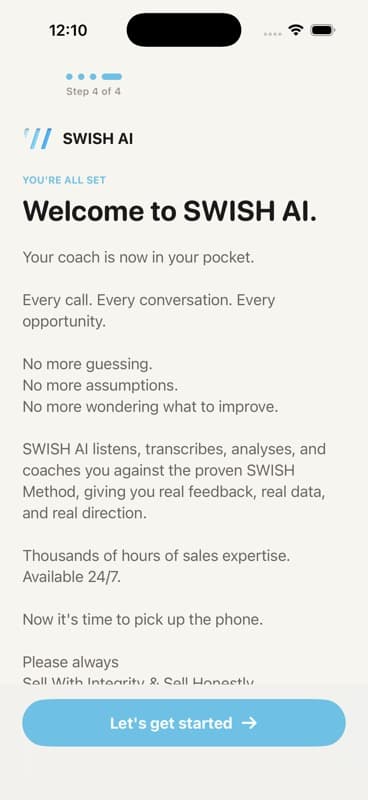
1. Start in the App
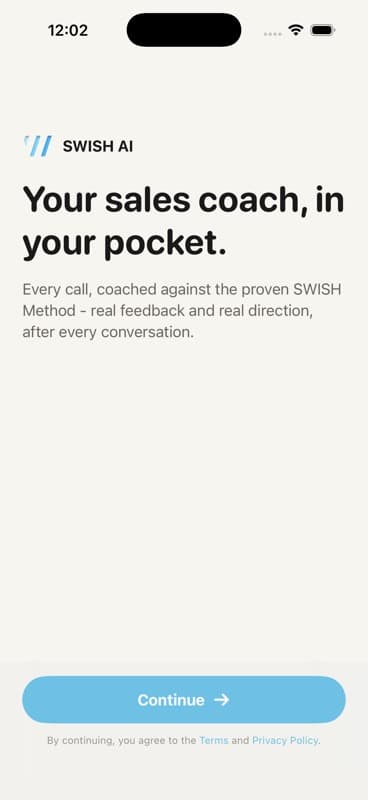
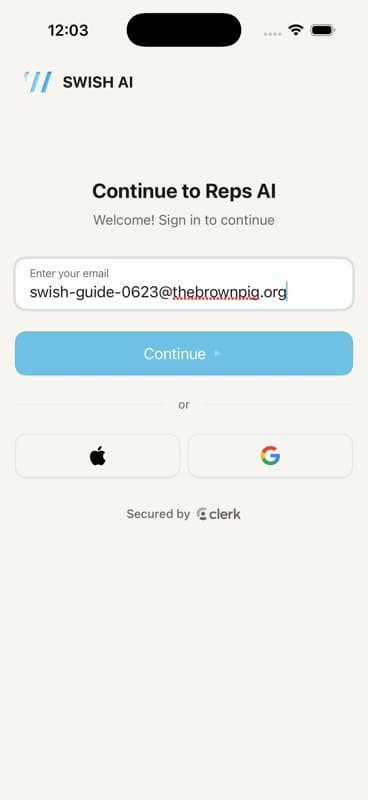
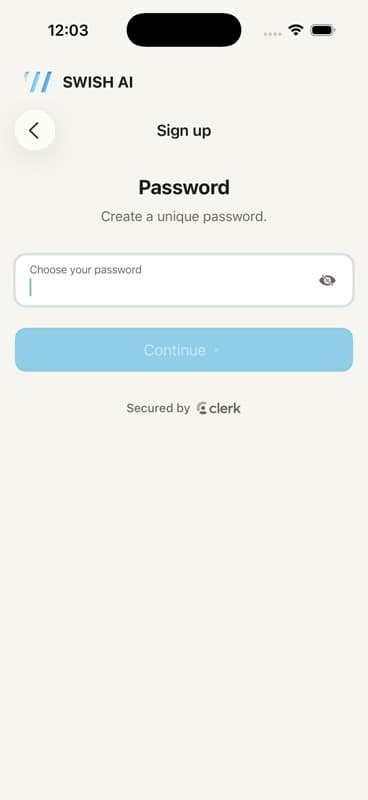
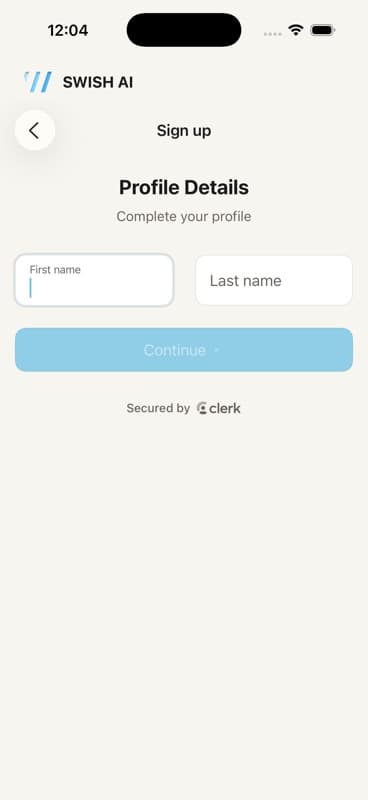
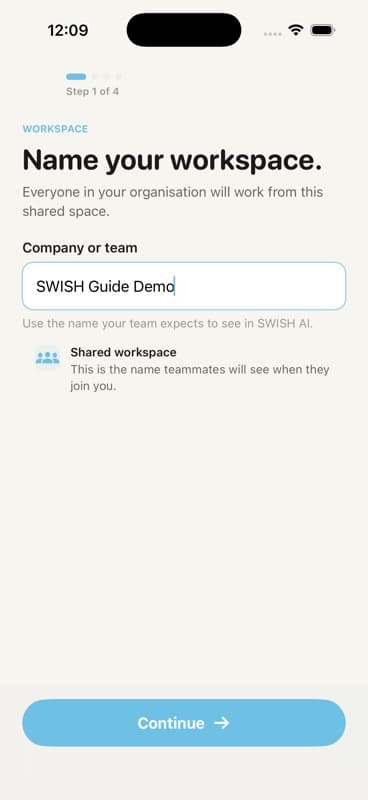
Use the business, team, or program name that other users will recognize in SWISH AI.
2. Verify Caller ID
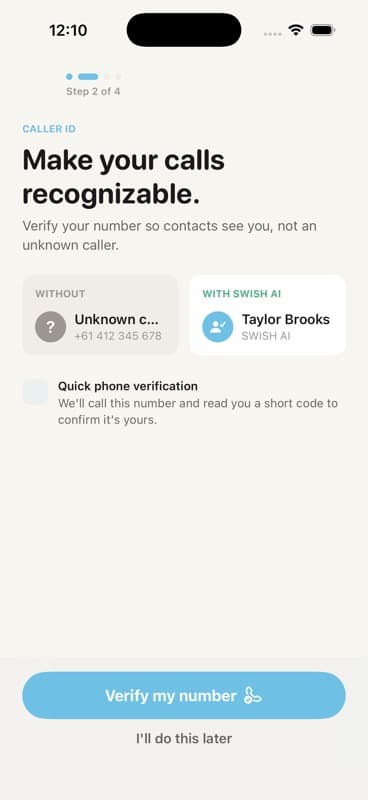
To verify now, tap Verify my number and enter the phone number you want customers to see.
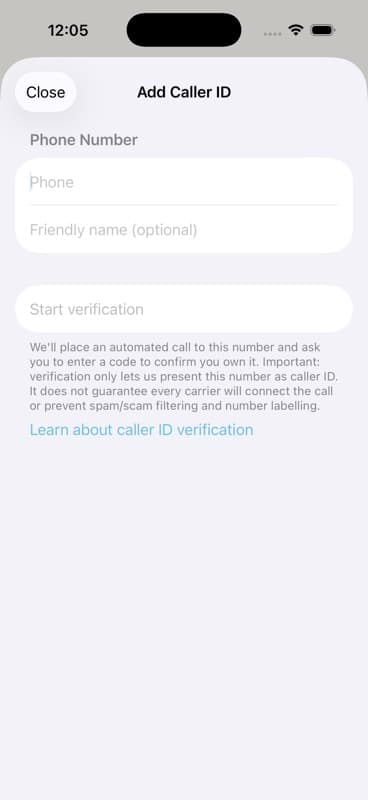
SWISH AI places an automated call and asks you to enter the code read out on the call. Verification confirms you own the number so it can be presented as caller ID. It does not guarantee every carrier will connect the call or prevent spam filtering.
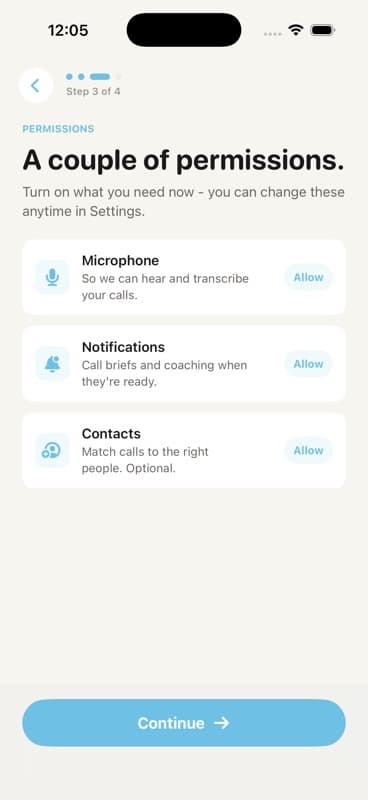
3. Allow Permissions
Choose the permissions you want to enable:
- Microphone for call audio and transcription.
- Notifications for call briefs and coaching updates.
- Contacts to match calls to the right people.
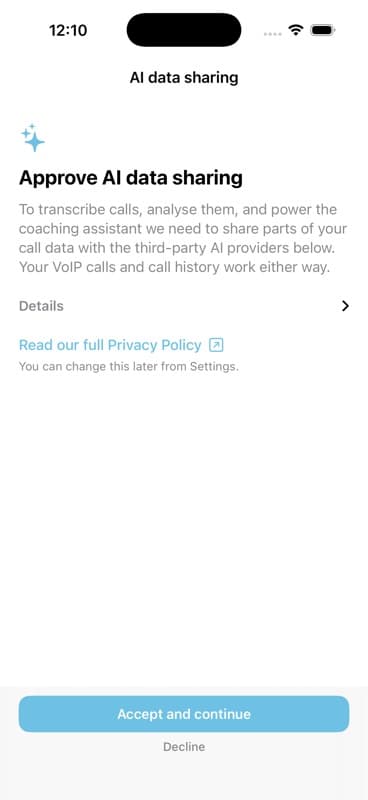
4. Approve AI Data Sharing
The first time you land in the app, SWISH AI asks for permission to share call data with AI providers for transcription, analysis, and coaching. Review the prompt, then accept if you want AI coaching features enabled.
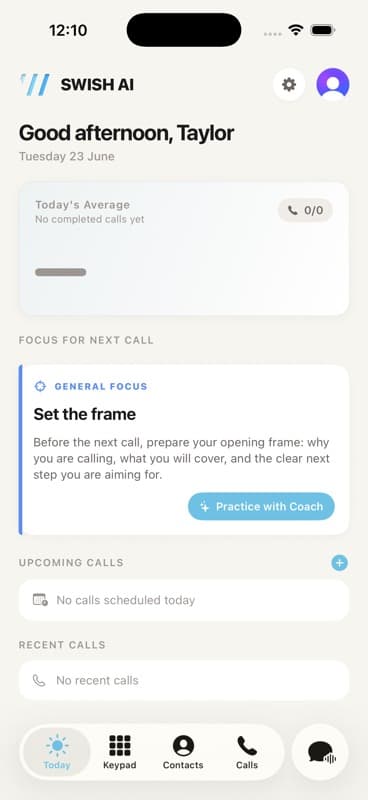
You will then land on the Today screen. From here, you can practice with the coach, schedule a call, open the keypad, review calls, and ask the coach questions.
5. Open the Web Dashboard
Sign in to the SWISH AI web dashboard with the same account. The dashboard opens to an overview of team performance, scored conversations, recent calls, and activity.
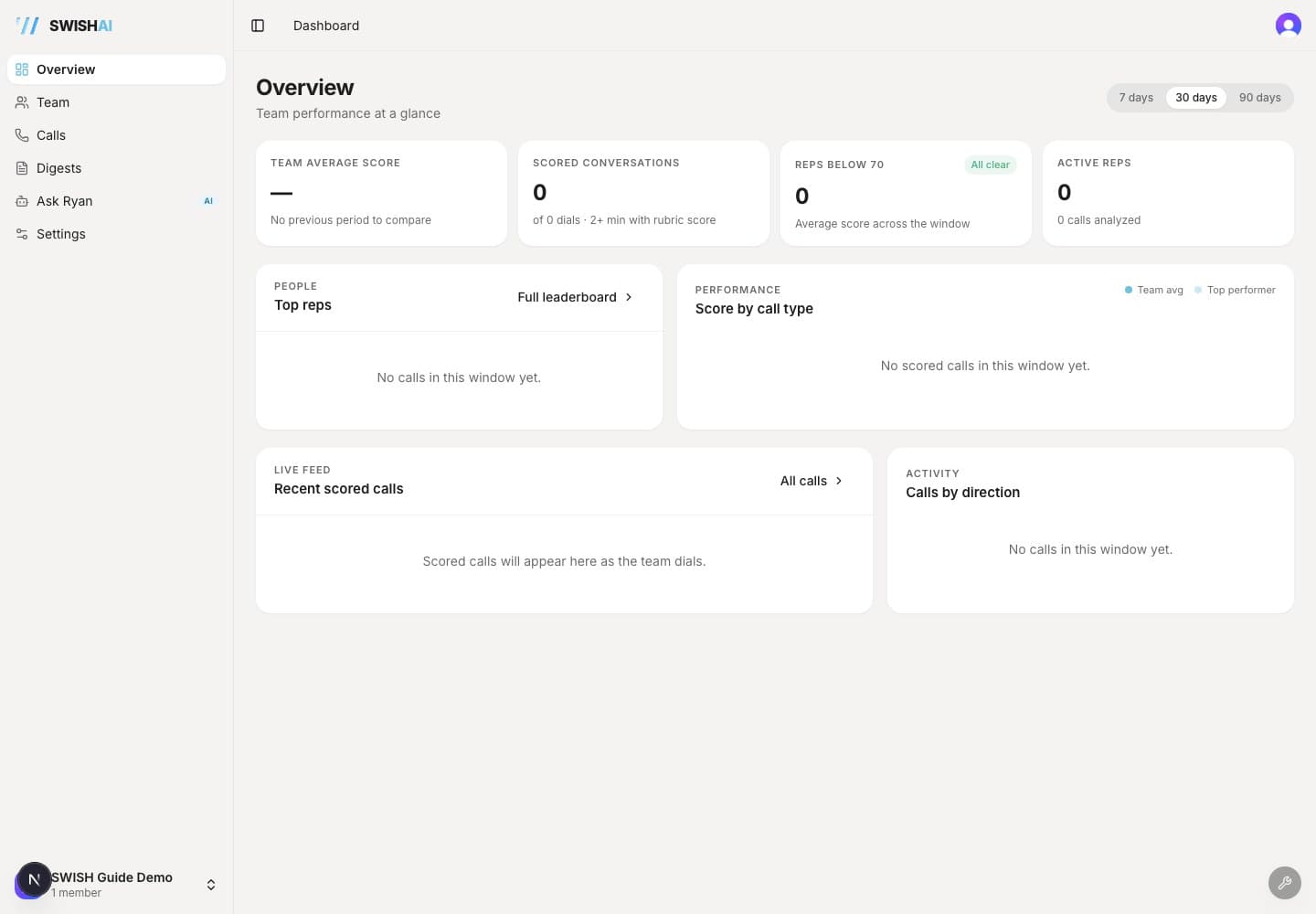
Use the sidebar to review calls, view team performance, open digest reports, ask the coach questions, and manage workspace settings.
6. Invite Users
Invite teammates from the web dashboard:
- Open Settings.
- Select Team members.
- Click Invite Member.
- Enter the teammate's email address.
- Click Send Invite.
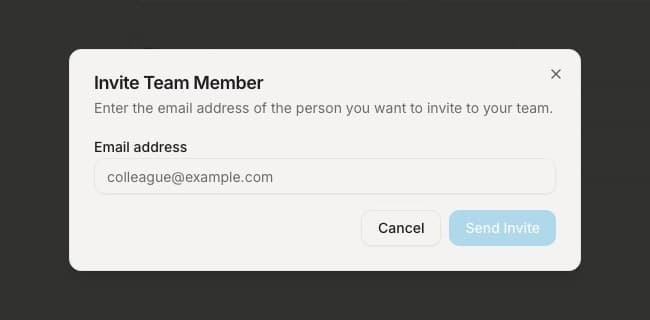
The teammate receives an email invitation and joins the same SWISH AI workspace after accepting it.
7. Set Up Reports
Digest reports are scheduled summaries of the team's calls, including scorecard results, what is going well, what needs improvement, and per-agent breakdowns.
- Open Settings.
- Select Digest reports.
- Turn on a daily or weekly cadence.
- Choose the report time, day, and timezone.
- Choose delivery by in-app notification, email, or both.
- Add email recipients if email delivery is enabled.
- Decide whether to generate a written summary for every agent.
- Add an optional focus note if the report should emphasize a specific coaching theme.
- Click Save settings.
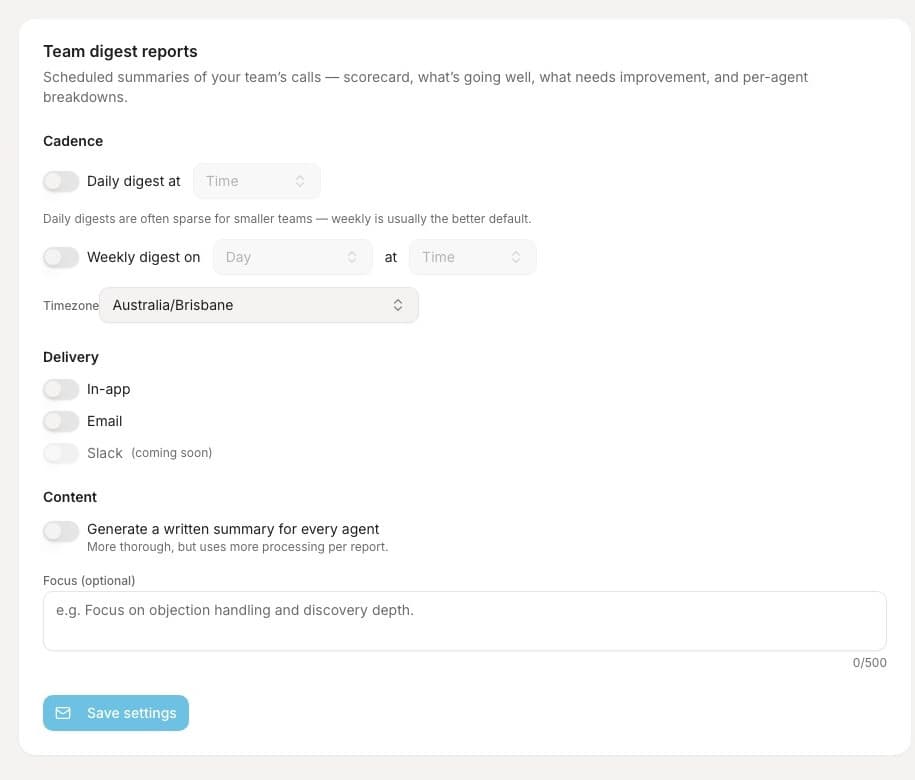
Reports appear in Digests after scheduled reports run.
Finish Phone Setup Later
If you skipped caller ID during onboarding, return to the phone verification flow from the mobile app before making outbound calls. Use a number you can answer immediately, because the verification call reads out the code during the call.